

Scroll baby scroll is the social media mantra.
You may have noticed every social media site uses a feed with infinite scroll. Substack is no different. So there I was, doomscrolling Substack’s Home feed, something I said I wouldn’t do since I usually use Google to discover new content.
Still, there’s something about the feed that draws you in. What might be hiding below the fold? No matter how much you scroll, it always seems like you could be missing out on the next great conversation or the next critical knowledge nugget.
The FOMO is real. I’d already figured out how to use Google to find Substack content and how to tame the feed. Still, I kept getting sucked in, though, so I thought I’d see if I could tame the infinite scroll. At the very least, maybe I could make it a little less painful.
My solution for you to try is below, but first…
Click Baby Click or Scroll Baby Scroll
The problem with feeds (and Google):
The feed sucks me in, but I don’t want to be doomscrolling. It’s even worse if you don’t clean up and curate your feed.
The problem is, site designers really only have a couple of major design choices for lists that make sense. Pagination, meaning multiple pages with lots of clicking and switching between multiple tabs, or a feed with infinite scroll.
What’s better? Having 10 pages of 10 items each and doing all that clicking and tab switching, or having one long page with 100 items on it?
I’ll take the long page please. Why? Because it’s easier to scan the page than click and tab switch and in-page search is fast (CTRL/CMD+F5).
Google saw this problem. Search results with 10 results each was less than optimal for many power users. Click baby click. The solution? You could add “&num=100” to the end of the Google URL and get 100 results per page. That’s a time saver. Woo hoo!
Sadly, Google took away the 100 search results per page option (more pages = more ad opportunities), so it’s much less useful for my workflow now.
Wah! Wah! Yes, I know, I’m whining and crying, but back to the point: pagination isn’t great and takes time, and infinite scroll is an even bigger time-suck.
Infinite scroll has it’s place, don’t get me wrong. Some sites, like Pinterest, seem perfect for it.
But Pinterest is a whole different vibe. It’s supposed to be a time-suck.
In support of infinite scroll, I’ll say I like the end result (a long page full of items that I can search on with in-page search). I just don’t like what I have to do to get there.
Scroll baby scroll or click baby click. I needed a solution.
The Idea (Infinite Scroll Buster + in Page Search)
The goal:
Automatically expand the feed so that a significant number of posts are displayed (100-150 or more would be great).
Then, use CTRL/CMD+F5 to search keywords on the page to surface relevant content or users.
The desired outcomes?
Either discover new content and people to follow/engage with, or…
Discover content from existing connections that might be missed otherwise.
All this with one click and a quick search for keywords that take me directly to conversations I want to know about. That’s far better than doomscrolling and it saves me time.
Other uses:
Other places on Substack where this debilitatingly draining design rears its ugly head are when viewing your own Notes or the Activity notifications. Please make it stop!
Sometimes I like to review the Notes I’ve written over the last couple of months to see how brilliant and popular I am. And that requires the infinite scroll-fest. No!
The Solution (Infinite Scroll Expander)
I have a simple solution. If you hate the manual labor that infinite scroll requires as much as I do, you’ll want to try this out.
I use a bookmarklet (a one-click script that works like a bookmark) in Chrome. I tried a number of different approaches to this and what I’ve shared below seemed to work the best.
If you run into any bugs, let me know. I’ve tested it using Chrome on my Windows laptop and it works for the Substack Home feed, my Notes, and my Activity, and…
Works on X and Pinterest, Too
My intent was to use this for Substack at first, but it also works to some degree on Facebook, X, and Pinterest, although you may need to increase the number for the “SCROLL_INTERVAL” if it stops too early:
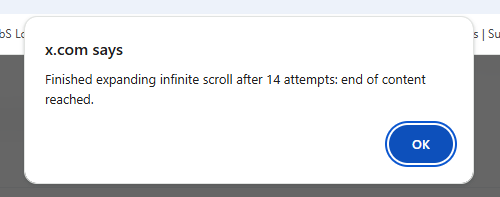
I found setting the interval to 1000 seemed to work on Substack, but setting it to “3000” helps to get a lot more content loaded on image-heavy Pinterest. Still, at some point, it quits, but I haven’t delved into why. I might revisit this and see if I can tweak it, but it might just be because Pinterest is taking too long to load.
Since your connection speed, computer, browser, and network situation may be totally different from mine, you’ll need to experiment.
Once you create the bookmarklet, you can edit it and simply change the "1000” to “1500” or more and test it out:
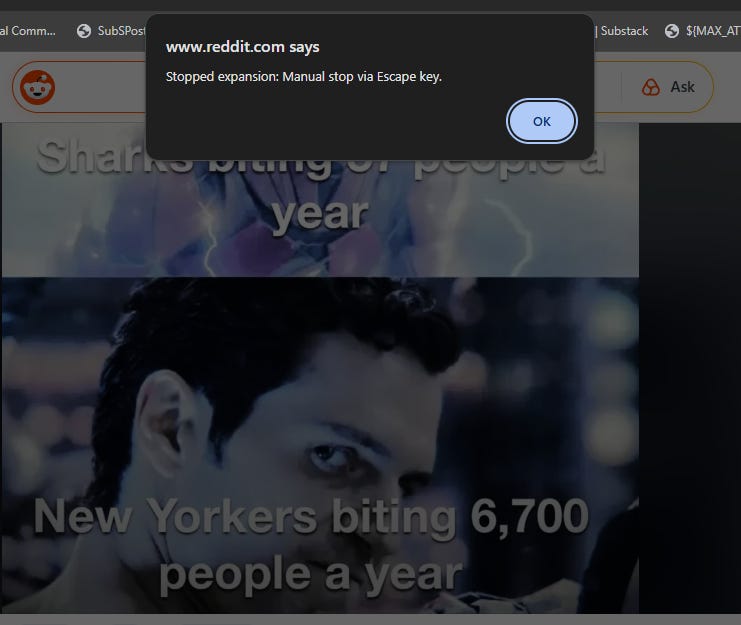
const SCROLL_INTERVAL = 1000; This script worked on Reddit, too, and you can use the escape key on your keyboard to stop it once you’ve had enough:
I’ve thought about building a Chrome extension or web app to conquer this and other annoyances, but this simple automation via bookmarklet is kind of a happy medium between building a tool and suffering through manual scrolling. Click and it does its thing and expands the page. Simple.
It’s a similar idea to my bookmarklet that expands all comments on a Substack post.
Copy and Paste This Bookmarklet Code
Here’s how to set it up:
If you know how to create a bookmarklet, all you need is the code below. If you don’t or you’re not sure, → here are my instructions on how to create a bookmarklet in Chrome. ← Click that link for screenshots and the details if you need it.
Just use this (copy/paste) code (below) to create your bookmarklet:
javascript:(() => {
    const MAX_ATTEMPTS = 400;
    const SCROLL_INTERVAL = 1000;
    let attempts = 0;
    let previousScrollHeight = 0;
    let isStopping = false;

    const stopScrolling = (reason) => {
        if (isStopping) return;
        isStopping = true;

        clearInterval(scrollIntervalId);
        window.removeEventListener('keydown', escapeHandler);
        console.log(`Expansion stopped: ${reason}`);
        alert(`Stopped expansion: ${reason}`);
    };

    const escapeHandler = (event) => {
        if (event.key === "Escape") {
            stopScrolling("Manual stop via Escape key.");
        }
    };

    window.addEventListener('keydown', escapeHandler);

    const scrollAndExpand = () => {
        if (isStopping) return;

        attempts++;
        if (attempts > MAX_ATTEMPTS) {
            stopScrolling(`Reached maximum limit of ${MAX_ATTEMPTS} attempts.`);
            return;
        }

        window.scrollTo(0, document.body.scrollHeight);

        const currentScrollHeight = document.body.scrollHeight;

        if (currentScrollHeight === previousScrollHeight && currentScrollHeight !== 0) {
            stopScrolling(`End of content reached after ${attempts} attempts.`);
        }

        previousScrollHeight = currentScrollHeight;
        console.log(`Attempt ${attempts}/${MAX_ATTEMPTS}.`);
    };

    const scrollIntervalId = setInterval(scrollAndExpand, SCROLL_INTERVAL);
    console.log("Auto-scroll started. Press 'Escape' to stop.");
})();
Note: Substack has a bad habit of turning straight quotes into curly quotes in code blocks. If you see any of those, paste the code into a plain text editor and change them.
What’s Next
Try it out! Now you can:
Visit your Substack Home feed or other site of choice. Click the bookmarklet, wait for it to expand the content, then use CTRL/CMD+F5 to search for any post, any keyword, any user.
If you want to stop it mid-run for any reason, just use the escape key as a kill switch. If you need any help, let me know!