

When I’m not amusing myself making fake tweets or posting cat pictures, I save myself tons of time by creating bookmarklets in Chrome that get around some of the time-sucks that plague my online life.
Bookmarklets are clickable scripts that can live in the bookmarks bar alongside, well, what else? Bookmarks.
For example, I use a Chrome bookmarklet that automagically expands the comments on Substack posts (some of which have thousands of comments). No matter how many comments there are, though, a single click expands them all. Time-suck defeated!
I also use one that expands web pages that use infinite scroll (another time-suck).
Did you know you could do that? Well, with bookmarklets, you can do that and a lot more. Instructions on how to add a bookmarklet to Chrome are below.
Bookmarks vs. Bookmarklets
Whereas bookmarks are links to other pages, bookmarklets execute JavaScript code. What can that code do? Lots of useful stuff, such as click buttons, open other pages, show alerts, scroll pages, and so on.
Bookmarklets are supported in most major browsers. You add them to your browser in the same way you add a bookmark.
I use these mostly in Chrome, so I’ll show you how to add it to Chrome.
How to add a bookmarklet to Chrome:

There are different ways to do this. Google has a help article on how to create, find and edit bookmarks in Chrome with related resources so I won’t duplicate all that here. Instead, I’ll give you the method I feel is the most straightforward and works for me.
Prerequisites:
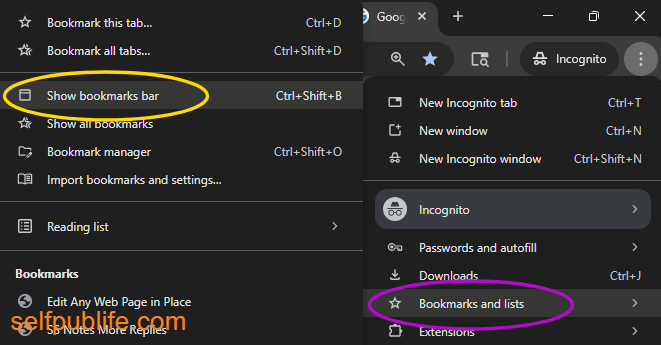
Make sure you’ve enabled “Show bookmarks bar” in the browser. Once it’s there, the bookmarks bar makes it easy and you’ll have a one-click bookmark or bookmarklet experience.
You need the code for the bookmarklet you want to add.
Here is some test code you can copy and paste to create your first bookmarklet if you like:
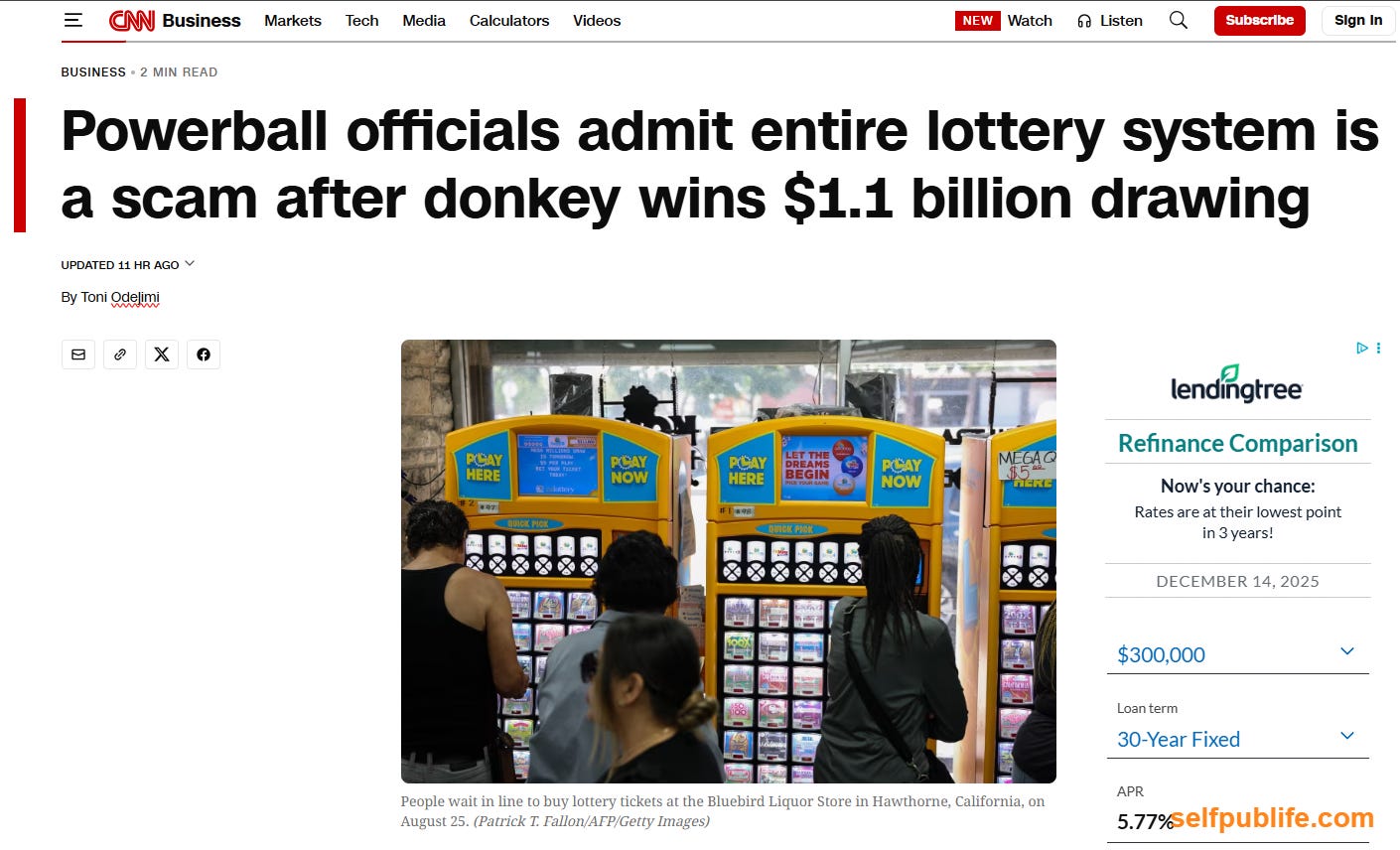
javascript:(() => {document.body.contentEditable = true; void 0;})();The code above makes web pages editable. Go to any web page, click on your new bookmarklet, place the cursor where you want, and you can edit the text of that site. I have fun making fake tweets and news headlines with this one.
For example, I changed the headline of a CNN article to read “Powerball officials admit entire lottery system is a scam after donkey wins $1.1 billion drawing”
Now to set up your bookmarklet, just follow these steps:
Copy the code for the bookmarklet to your computer’s clipboard (highlight code, CTRL/CMD+C).
Open Chrome and make sure the bookmarks bar is visible (if you enabled it as I explained above, it should be).
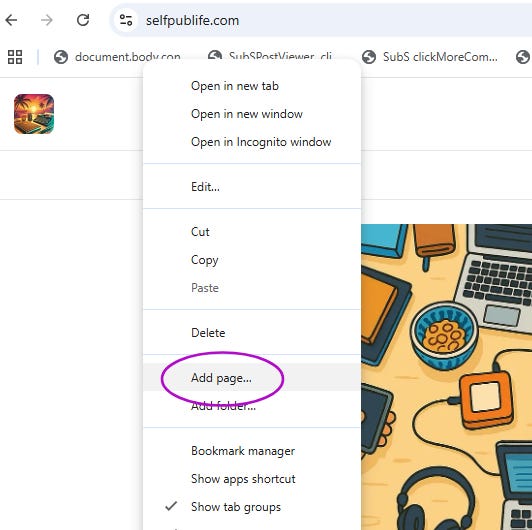
Right click on the bookmarks bar and select “Add page…”
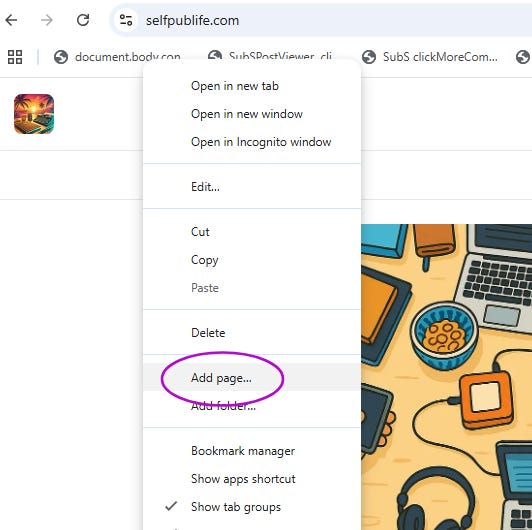
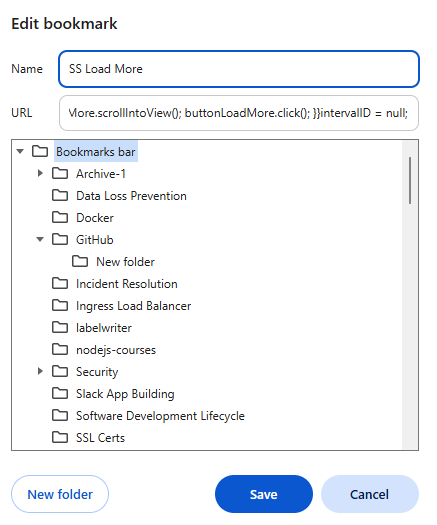
Paste the entire code you copied to the clipboard (CTRL/CMD+V) into the URL field* and give your new bookmarklet a name in the Name field.
*Yes, it’s weird, the URL field is where you put the entire code.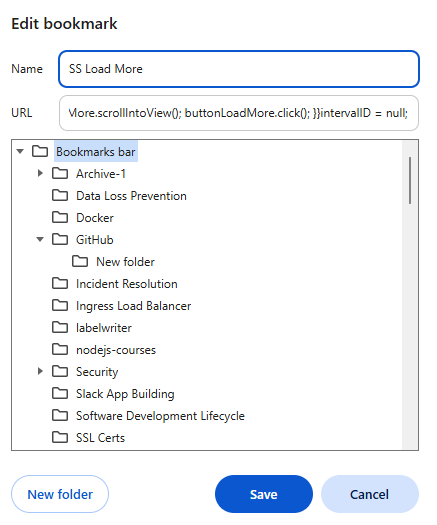
Click Save.
At this point, your bookmarklet should appear in the bookmarks bar.
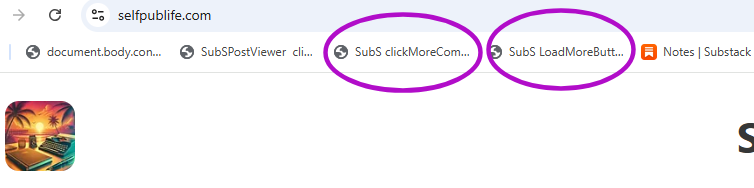
And that is all! You can now test out your bookmarklet.
Notes:
This should work on all Chromium-based browsers, but I have only tested it in Chrome on Windows 11.
Technology is ever-changing. From time to time, websites and pages change, browsers get updates, security restrictions tighten, and so on. These can be “breaking changes” and can break scripts. The browser interface may change, altering how you add or manage bookmarks and bookmarklets. In other words, at some point this may stop working and need to be overhauled.
Bookmarklets are managed the same way bookmarks are, and can always be edited or deleted using the Chrome Bookmark manager at:
chrome://bookmarks/You can copy the text above and paste it into your browser. Substack automatically adds https:// to if I try to create a link to it so that’s why I chose the copy/paste idea. If you need any help implementing this or have questions, let me know!
Instructions for creating a bookmarklet in Firefox (no screenshots):
1. Bookmark any page: Click the star icon in the right side of address bar. ( or press Ctrl - D )
2. Open Properties: Right-click the new bookmark and select Edit Bookmark...
3. Edit Details: Rename it and paste the JavaScript code (which starts with javascript:) into the Location or URL field.
There are also fields for Tag(s) and Keyword, which can be left blank (or filled in).
4. Save: Click Save